
Automation
Rules you can read back.
Objectives, criteria, and rules stay visible, and each run records what it decided, rule by rule.
- Workspace
- Automation, in the App
- Scope
- Assigned per ad group and product
- Access
- Preview a run before it happens, and read what it did after
Every kind of decision is named.
A rule states which decision it makes. Criteria decide which targets it reads. Nothing is hidden behind a single optimization switch.
An objective is one set of rules. It holds the rule types that should run together, and it is assigned to the ad groups and products that should follow it. Because the set and the assignments are separate, changing what an ad group follows does not mean rebuilding the rules inside it.
- Bidding
- Import
- Negation
- Negation word
- BiddingTarget ACOS, fixed and percentage moves, with per-run caps followed by the bid boundaries you approve.
- ImportPromote converting search terms into keyword targeting with deduplication and controlled initial bids.
- Negation + unnegateBuild two-way rules that create or remove exact and phrase negatives inside the scope you define.
- Negation wordFind repeated losing words across queries while the ASIN Whitelist protects terms you choose.
- DaypartingSchedule both bid changes and enable or pause states by hour, with criteria and assignments kept separate.
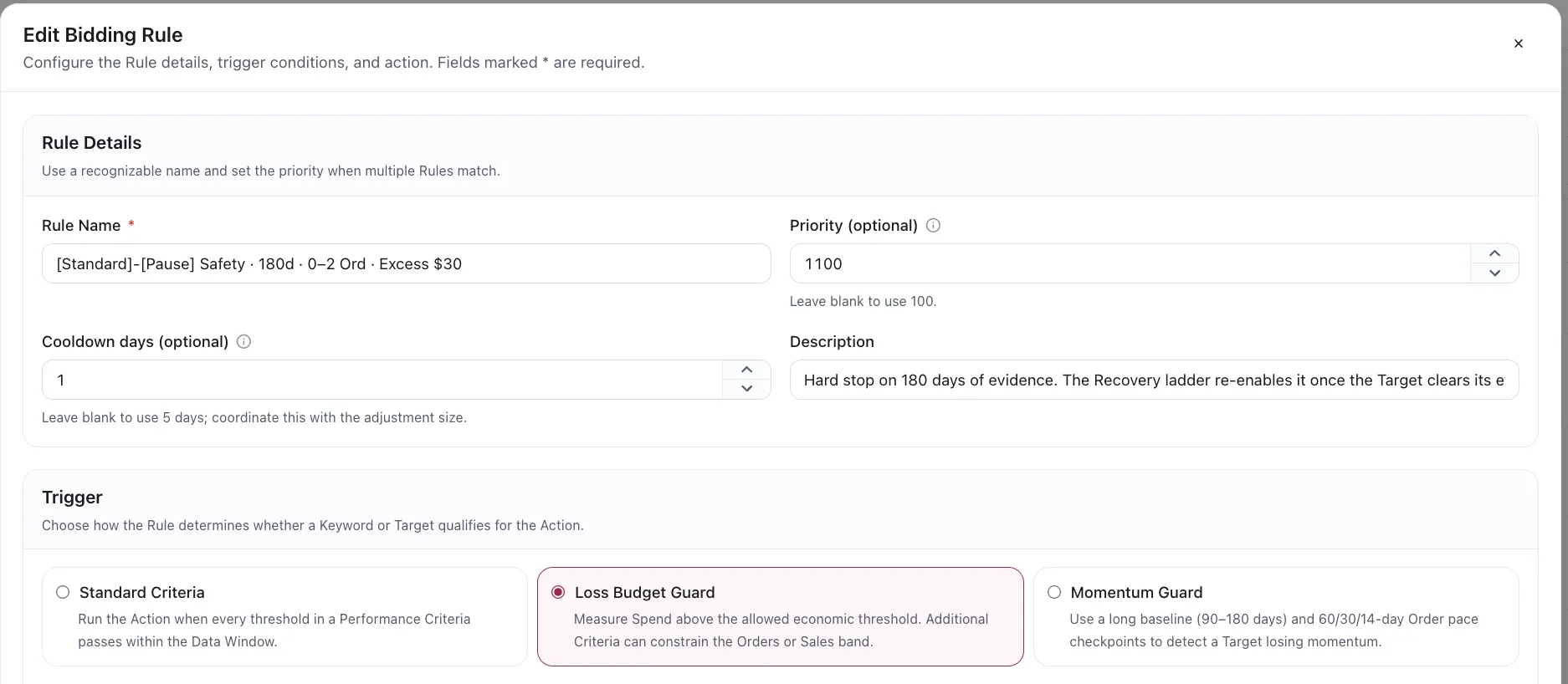
A rule also states how it is triggered, and the choices depend on what the rule does. A Bidding rule can run on plain criteria, on a loss budget, or on a momentum check. A Negation rule can run on plain criteria, or on the deterioration trigger below.
- Standard CriteriaRun the action when every threshold in a Performance Criteria passes inside the selected Data Window. Any rule
- Loss Budget GuardMeasure spend above the allowed economic threshold, with optional Criteria to constrain the Orders or Sales band. Bidding
- Momentum GuardUse a long baseline of 90 to 180 days and 60, 30, and 14-day order pace checkpoints to detect a target losing momentum. Bidding
- Performance DeteriorationConfirm a term earned its place over a historical window, then require a Recent Criteria to match independently at both 60 and 30 days before a negative is created. Negation
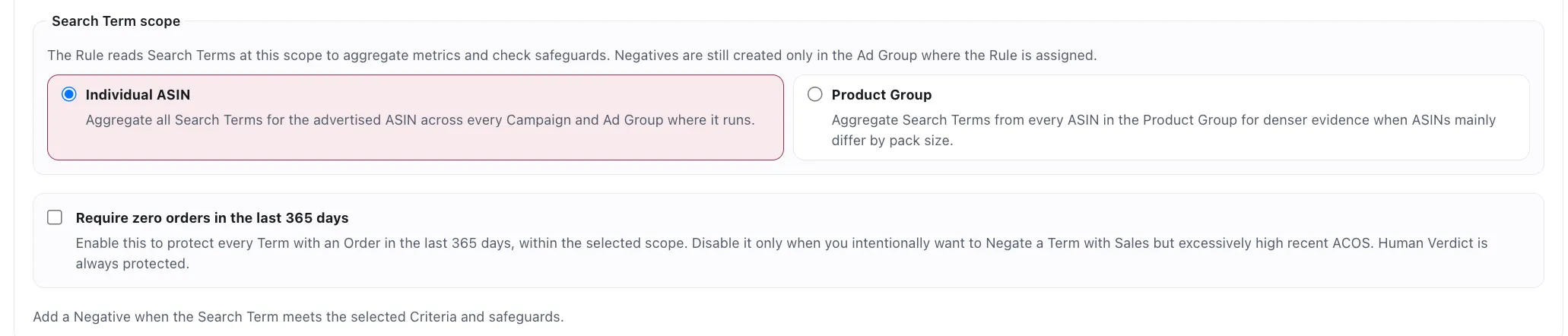
A rule also states the scope it reads evidence at. Reading a search term across the whole Product Group gives denser evidence when siblings differ mainly by pack size, and the negative from that Negation rule is still created only in the ad group the rule is assigned to.
Blacklist writes across the ASIN on purpose.
A Blacklist entry does not wait for a matching search term or an Import rule. On the next run, it creates the missing negative in every eligible ad group advertising that ASIN inside an Objective with Blacklist enabled.
Boundaries can reverse a bid move.
The per-run cap limits speed. Your bid boundaries apply afterward and limit the authorised result. That is why a Max Bid can lower a bid even while ACOS is below target: the boundary wins instead of being relaxed.
The winner that quietly stopped working.
Most negation catches a term that never sold. The harder case is the term that used to sell and has been decaying since, because every rule written to protect your winners is protecting this one too. Performance Deterioration is the trigger for that case.
Historical @ 90d
Historical CriteriaIt converted, and it converted efficiently
Recent @ 60d
Recent CriteriaThe same term, now past your ceiling
Recent @ 30d
Recent Criteria, againStill past it in the last month on its own
All threeCreate the negativeThe two recent checkpoints are scored separately, so a term has to be bad at 60 days and bad again at 30 before anything is written. One poor fortnight does not qualify.
The historical window is yours
90, 120, 150, 180 days, and it has to be longer than the 60-day checkpoint it is judged against — otherwise there are no days left over to prove the term was ever worth keeping. It also has to sit inside the Automation Window your plan allows.
Why the 365-day safeguard steps aside here
A negation rule normally skips any term that took an order in the last year. This trigger exists to act on terms that did exactly that, so selecting it turns that safeguard off. The historical criteria replaces it: nothing qualifies unless the record shows it earned its place first.
What does not step aside
A term on the ASIN's Whitelist is protected unless this rule explicitly has Ignore the Whitelist switched on.
The workspace is the audit trail.
Assignments show what is currently automated. Runs show what happened. Memory keeps the per-product history a rule relies on between runs, so a decision can be traced back to the state that produced it.
- Preview before commitmentRule output can be inspected before it is treated as work to apply.
- Runs stay on the recordA run keeps what it decided and what it delivered, rule by rule.
See a run before and after it happens.
A rule that changes an advertising account has to be inspectable from both ends: what it is about to do, and what it did.
A run can be previewed before it happens. Every target the rule would touch is listed with its current value beside the value the rule wants to set, and the difference between them, so you can disagree with a change while it is still a proposal rather than a thing that already happened.
Afterwards, Runs and Change Logs hold what each run decided and what it delivered, rule by rule. That record is the point: a rule you can read back a month later is only useful if you can also read back what it actually did.
Where applied changes are reviewedWhere a rule usually starts
Signal
Performance and search termsAdvertising data lands in the seller profile it belongs to.
Decision
A change is preparedA Decision Brief or a rule run is staged with the evidence behind it.
Delivery
A person applies it, or an enabled run delivers itA rule run delivers on its schedule. A Decision Brief waits for you to read it and apply it.
Record
Runs and change historyThe run keeps what it decided, and the account change is recorded with its type and source.
What a plan changes
The plan does not change what a rule can do.
There is no tier where the useful triggers live, and no plan that caps how many products you automate. Every rule family and every trigger is on the entry plan, for every product you point Automation at. The one thing that opens up further along the ladder is how far back a rule may read.
Every product you automate gets
- Every ad group it runs inHowever many campaigns that product is split across. Automation is assigned to ad groups, and none of that is metered.
- All 5 rule familiesBidding, import, negation and unnegation, negation word, and dayparting. Not a tier of them.
- Every trigger, including the 3 guardsStandard criteria, the loss budget and momentum guards on bidding, and the deterioration trigger on negation.
- All three ad productsSponsored Products, Sponsored Brands including video and image, and Sponsored Display.
- Preview before, record afterPreview Changes on any run, and a run record that keeps what was decided and what was delivered, rule by rule.
And this is what the ladder changes
Products under Automation
No cap
On every plan. Point Automation at as much of the catalog as you want.
Automation Window
90180days
The furthest back a rule may read. An Automation Window add-on buys the rest, and 180 is the ceiling on any plan.
Rule families
Every kind of decision has its own rule.
Nothing hides behind one optimisation switch. A family names the decision it makes, and the criteria you attach decide which targets it is allowed to read.
- 5Rule familiesEach one names the decision it makes
- 7Change typesEverything a run is allowed to touch
- 3Bidding trigger modesStandard criteria, and the two guards
- 180Days of history, at mostThe ceiling on any Data Window, on any plan
- BiddingTarget ACOS, fixed and percentage moves, with per-run caps followed by the bid boundaries you approve.
- ImportPromote converting search terms into keyword targeting with deduplication and controlled initial bids.
- Negation + unnegateBuild two-way rules that create or remove exact and phrase negatives inside the scope you define.
- Negation wordFind repeated losing words across queries while the ASIN Whitelist protects terms you choose.
- DaypartingSchedule both bid changes and enable or pause states by hour, with criteria and assignments kept separate.
What a run is allowed to change.
Every run can be previewed first: each affected target listed, the current value beside the proposed one, and nothing applied until it reads right.
- Bid change
- Import keyword
- Import product target
- Negative keyword
- Remove negative
- Enable
- Pause
Automate the part you can explain.
Set an objective, assign the rules that serve it, and keep every run readable in the same workspace.